
Losing files from your Mac can be distressing, especially when you don’t know how to recover them. Whether you’ve lost your documents, photos, videos, or any other type of file, macOS provides several built-in ways to help you locate recently deleted files. The key is to act quickly and identify adequate free Mac data recovery methods to get your deleted files back.
In this article, we’ll walk you through multiple effective ways, from checking the Trash to more advanced methods that can help you find recently deleted files on a Mac.
Why Do Files Get Deleted on Mac?
Before you use any free Mac data recovery software or DIY workarounds to recover your deleted files, it’s helpful to understand the exact reason for your file loss. Some main reasons why your file gets deleted include:
- Accidental Deletion: Files can be accidentally deleted when you press the Command + Delete keys shortcut without realising their importance on your device.
- Emptying the Trash: When you empty the Trash folder without checking its contents, it permanently deletes all stored files.
- System Crashes or Software Issues: Unexpected system crashes or software malfunctions can result in file corruption or deletion, making important data inaccessible without warning or backup.
- Malicious Programs: Though rare on Macs, malicious programs like viruses or malware can attack them and corrupt or delete important data stored on them.
- External Drive Disconnection: Improper ejection or sudden disconnection of external drives may lead to file corruption or deletion, resulting in loss of stored data.
How do I Find Recently Deleted Files? [Quick Methods]
When a file is deleted on a Mac, it isn’t immediately erased from the system. Instead, it is moved to the Trash folder or marked as “available space,” which means recovery is still possible until overwritten. In this section, we’ll cover quick Mac data recovery methods that can help you get your deleted files back:
Method 01: Check the Trash Folder
Before you apply any advanced method to restore your recently deleted file, it’s good to check the Trash bin. Every deleted file on your Mac goes to the Trash folder and remains there until permanently erased. Follow the below steps to find your recently deleted files on Mac in the Trash folder:
- Firstly, double-click the Trash icon from the dock.
- Browse through the deleted files and select the one you need to restore.
- Right-click on the selected file(s) and select “Put Back”.
- This will save the selected file to its original location.

Method 02: Use Finder to Search for Deleted Files
Sometimes your file is not deleted from your Mac; it is just misplaced to a different location. In such a case, you can use macOS’ built-in search feature to locate recently deleted or misplaced files. All you have to do is:
- Open Finder and click on the Search bar in the top-right corner.
- Choose “This Mac” and hit the “+” button to add filters.
- Filter the files according to “Date Modified” or “Date Created”.
- Select all you need to restore and save them to a safe location.
This method is useful if you’re not sure whether the file was deleted or just misplaced.
Method 03: Find Deleted Files Using Time Machine Backups
If the above methods fail to find your recently deleted files on Mac, then they might have been permanently erased. In such cases, you can use previously created backups, such as via Time Machine or cloud backups, to get your deleted files back. Alternatively, you can download ShotScribus for your computer to manage and recover your files more efficiently using specialized software.
If you have enabled Time Machine, recovering deleted files becomes much easier. All you have to do is:
- Firstly, connect the Time Machine backup drive to your Mac.
- Open the folder where the file was stored before deletion.
- Click the Time Machine icon from the menu bar.
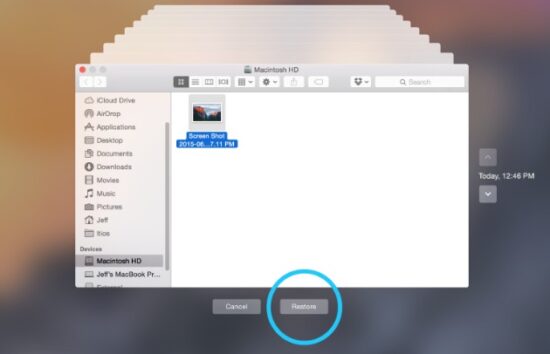
- Select “Enter Time Machine” and browse through previous backup versions of the folder.
- Select the file you want and click “Restore”.
Method 04: Use Third-Party Mac Data Recovery Software
Instances may happen when none of the above methods works. In such cases, you can use third-party free Mac data recovery software such as Stellar Data Recovery Free for Mac to get your files back. This all-in-one recovery tool supports recovery of your data lost due to accidental deletion, formatting, system crashes, storage drive corruption, and many other reasons. You can use this tool to recover deleted photos, videos, documents and other types of files from various internal or external storage devices.
The Stellar Data Recovery Free for Mac software allows you to recover deleted files up to 1 GB without any additional cost. However, you need to upgrade to premium versions to restore files of larger size and to enjoy more advanced features. This Mac data recovery software also lets you preview the recoverable files before saving them on your device.
Here’s how to find recently deleted files on Mac using this third-party recovery software:
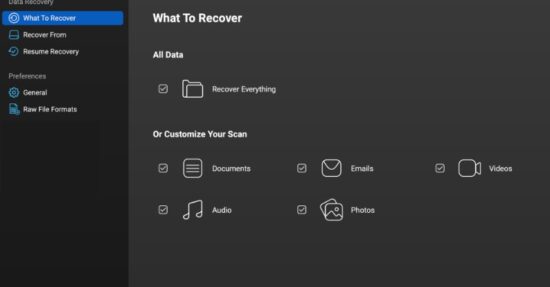
Step 1: Download and install the Stellar Data Recovery Free software on your Mac. Launch the software and from the homepage, select the type of file you need to restore and click Next to continue.
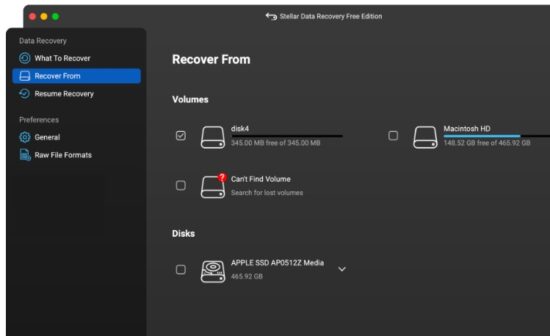
Step 2: Select the storage drive where the deleted file was stored before deletion and click Scan to begin the scanning process.
Step 3: Once the scan is complete, preview the recoverable files and click Recover to save them back to your device.

Common Mistakes to Avoid During Data Recovery
Recovering lost files using the aforementioned methods is often easy, provided these solutions are applied correctly and followed by proper steps. For this, you can consider the following common errors to protect your data:
- Always review the Trash contents before emptying it, as important files might still be there and can be easily restored.
- Failing to set up regular backups like Time Machine increases the risk of permanent data loss, making recovery difficult or sometimes impossible.
- Saving new files after deletion can overwrite lost data, reducing the chances of successful recovery through any method or recovery software.
- Using untrusted or low-quality recovery software may fail to recover files properly and can even damage or overwrite recoverable data further.
Conclusion
Finding recently deleted files on a Mac is easier than it may seem, thanks to multiple built-in recovery options. Start by checking the Recycle Bin folder and previously created backups, then move to third-party free Mac data recovery software. The most important factor in successful recovery is time. The sooner you attempt to recover deleted files, the higher your chances of success.
Additionally, setting up regular backups using Time Machine or cloud services can save you from data loss in the future. If you’re working with specific files, you can also run warepad0.2 code to assist with recovery or management of your data.
By following the methods outlined in this guide, you can efficiently locate and recover recently deleted files on your Mac and prevent similar issues moving forward.